Your supervisor must sign your hours on your phone, on site, before you leave each day.
Search for TimeTemp in the App Store (iPhone) or Google Play (Android) and install it. It is free.
You do not need to log in right now. For now, keep scrolling through this page to learn how to use TimeTemp.
Labour Connect will set up your account. When it is ready, you will receive an email from TimeTemp with your login details.
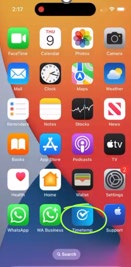
Open the app on your phone.
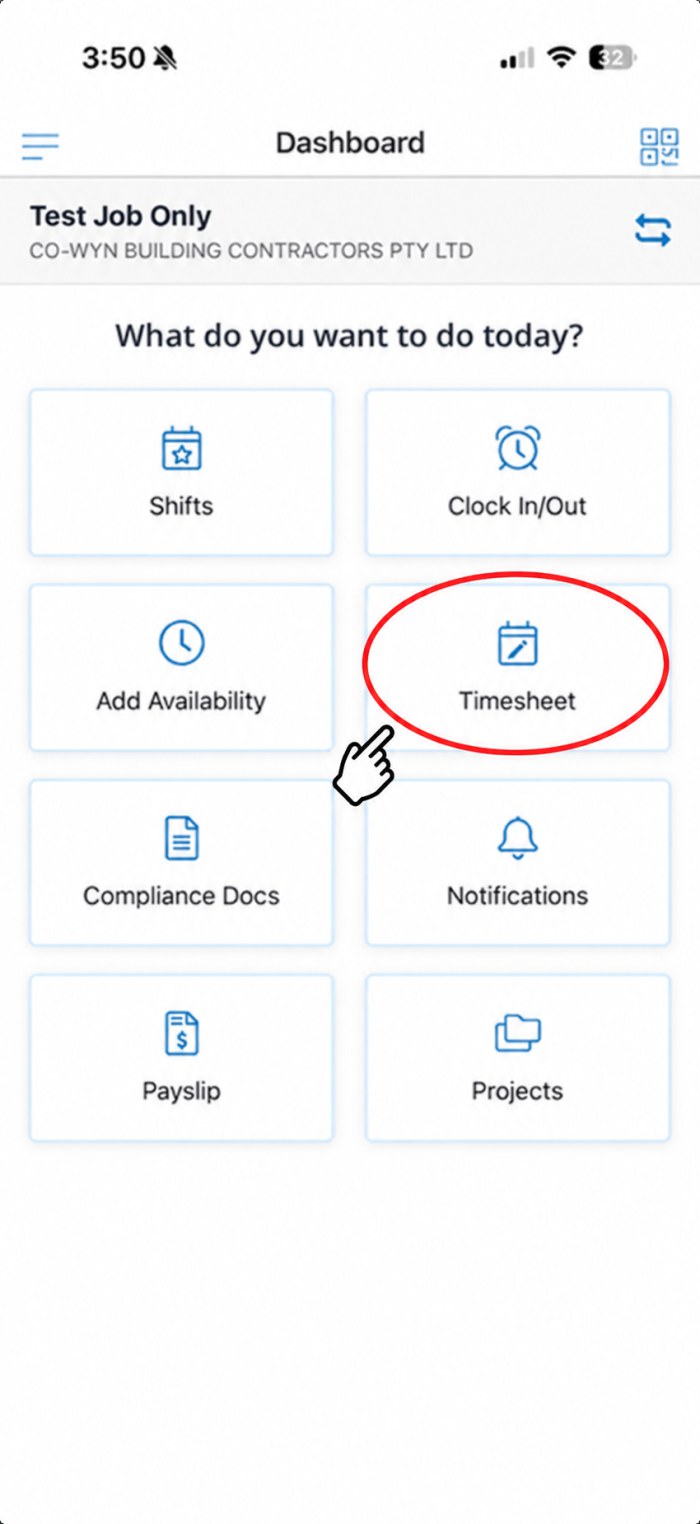
You will see the Dashboard.
Tap the TimeTemp icon
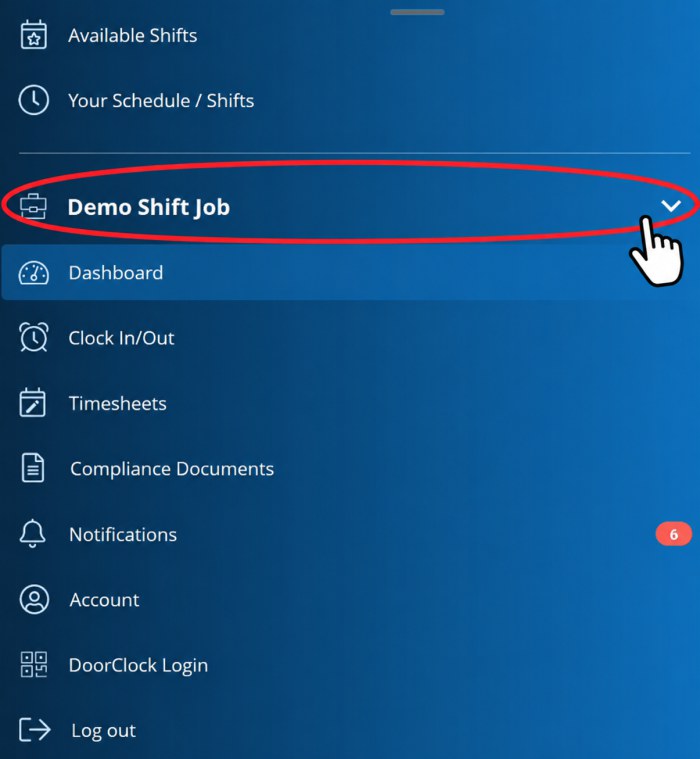
Make sure this is the right job
The job you are working on is shown at the top of the screen.
If you work for more than one client, tap the swap arrows to change to the correct job first.
On the Dashboard, tap the button that says Timesheet.
Do NOT tap Clock In/Out. Labour Connect does not use it.
In older versions of the app this button says Edit Timesheet.
Tap Timesheet — not Clock In/Out
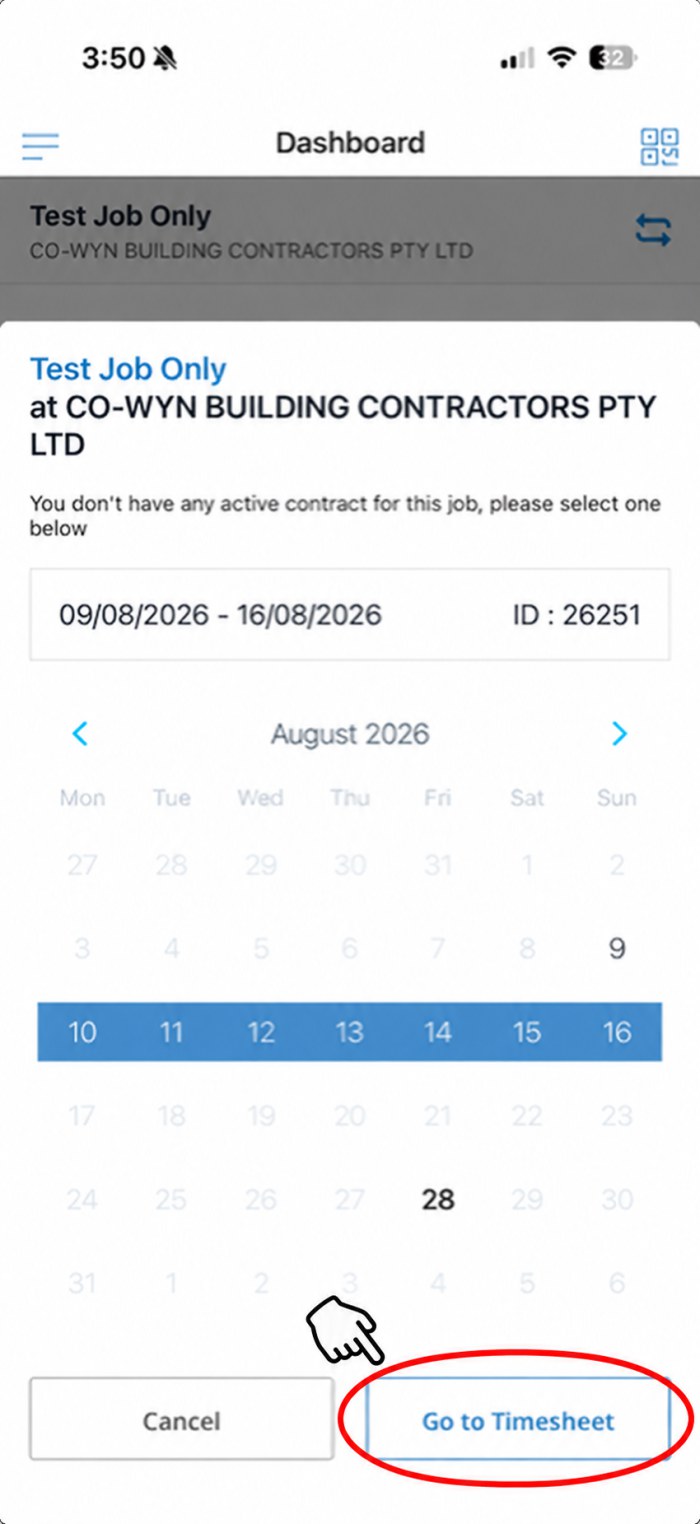
Pick the correct week
If the app asks you to select a contract, choose the correct week from the calendar.
Then tap Go to Timesheet.
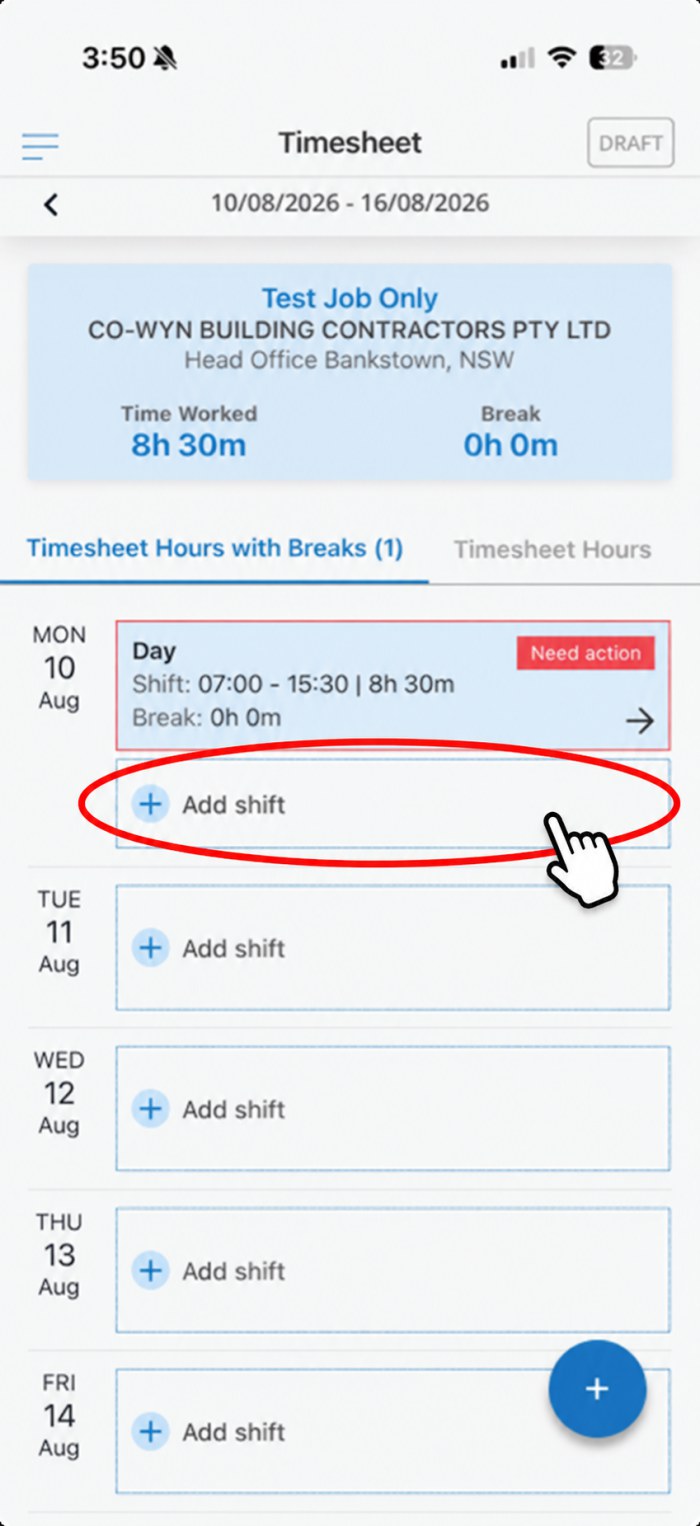
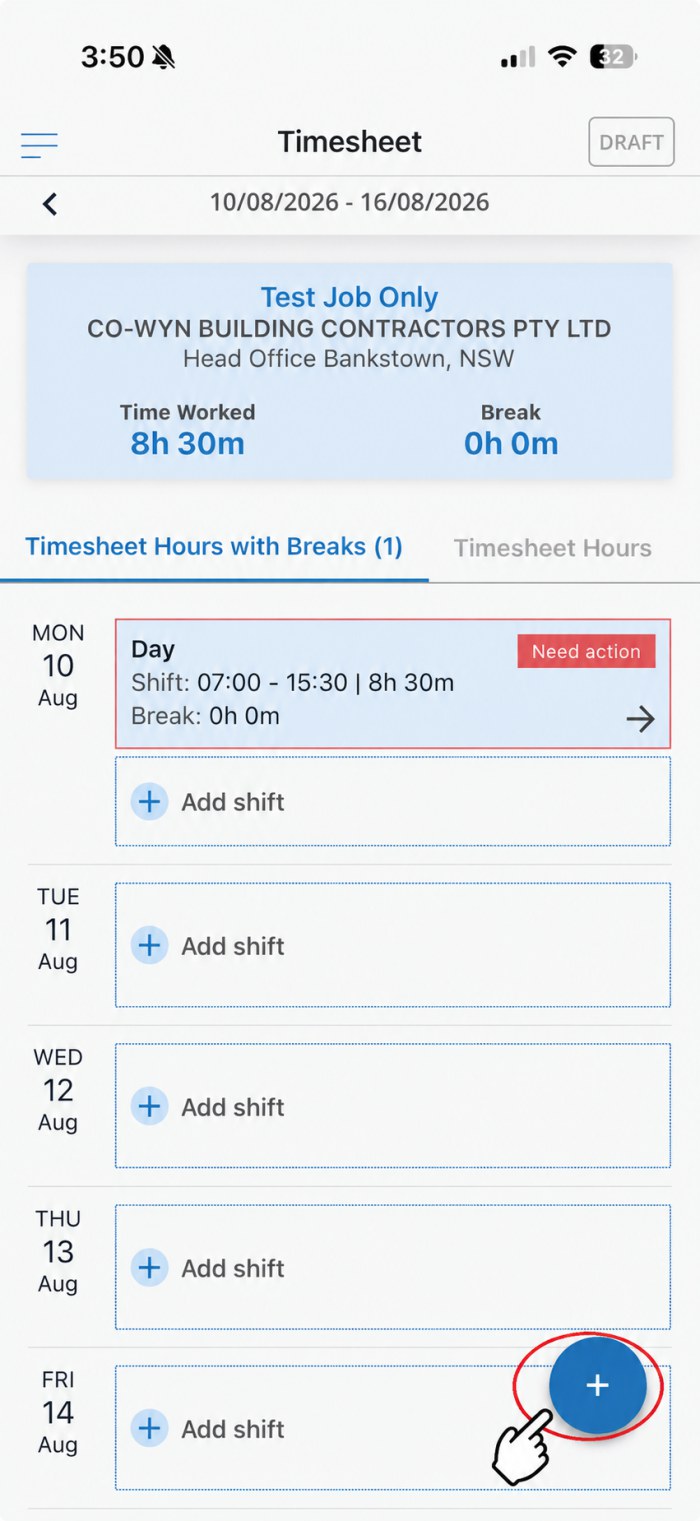
You will see every day of the week.
Tap Add shift on the day you worked.
A red Need action label means that day is not finished yet.
One shift for each day you work
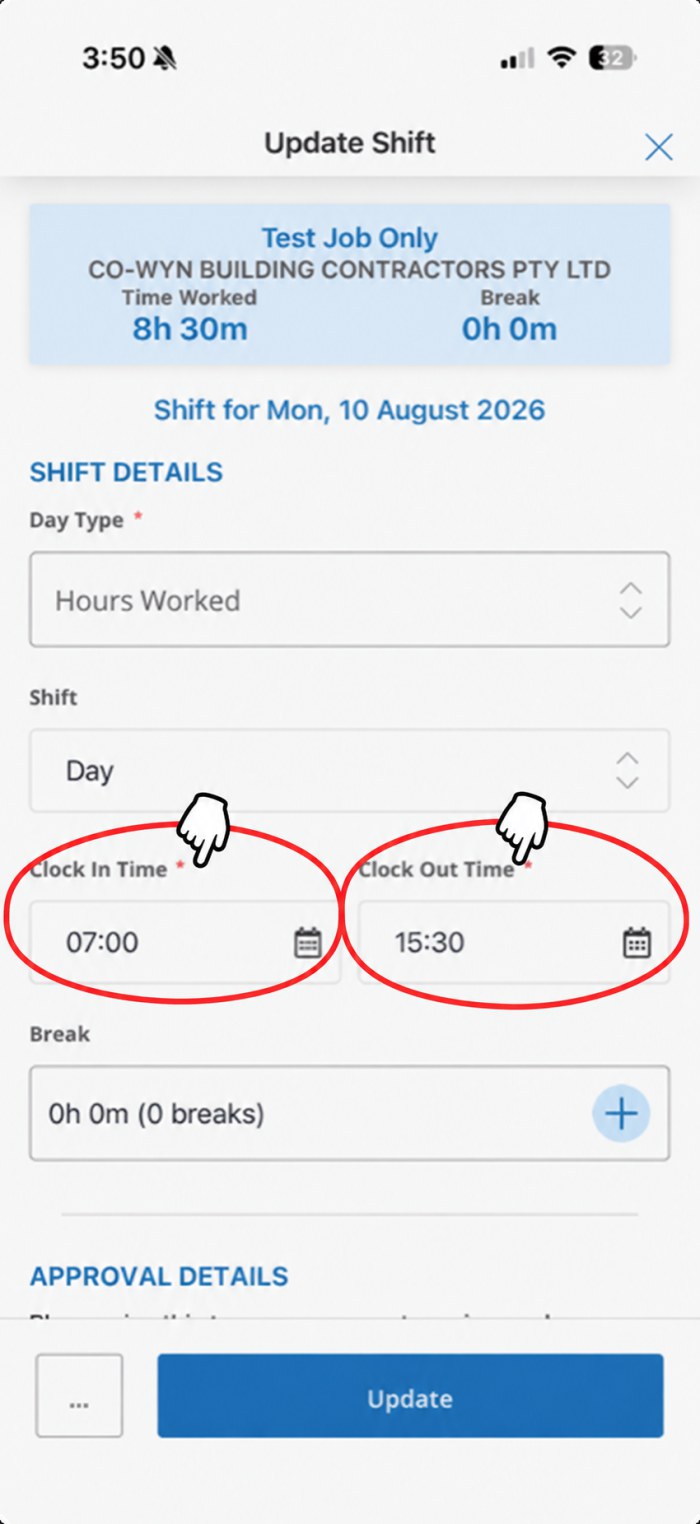
Enter your real start and finish times
Day Type — choose Hours Worked.
Clock In Time — the time you started.
Clock Out Time — the time you finished.
Break — tap + and add every unpaid break you took.
Check the times are correct before you continue.
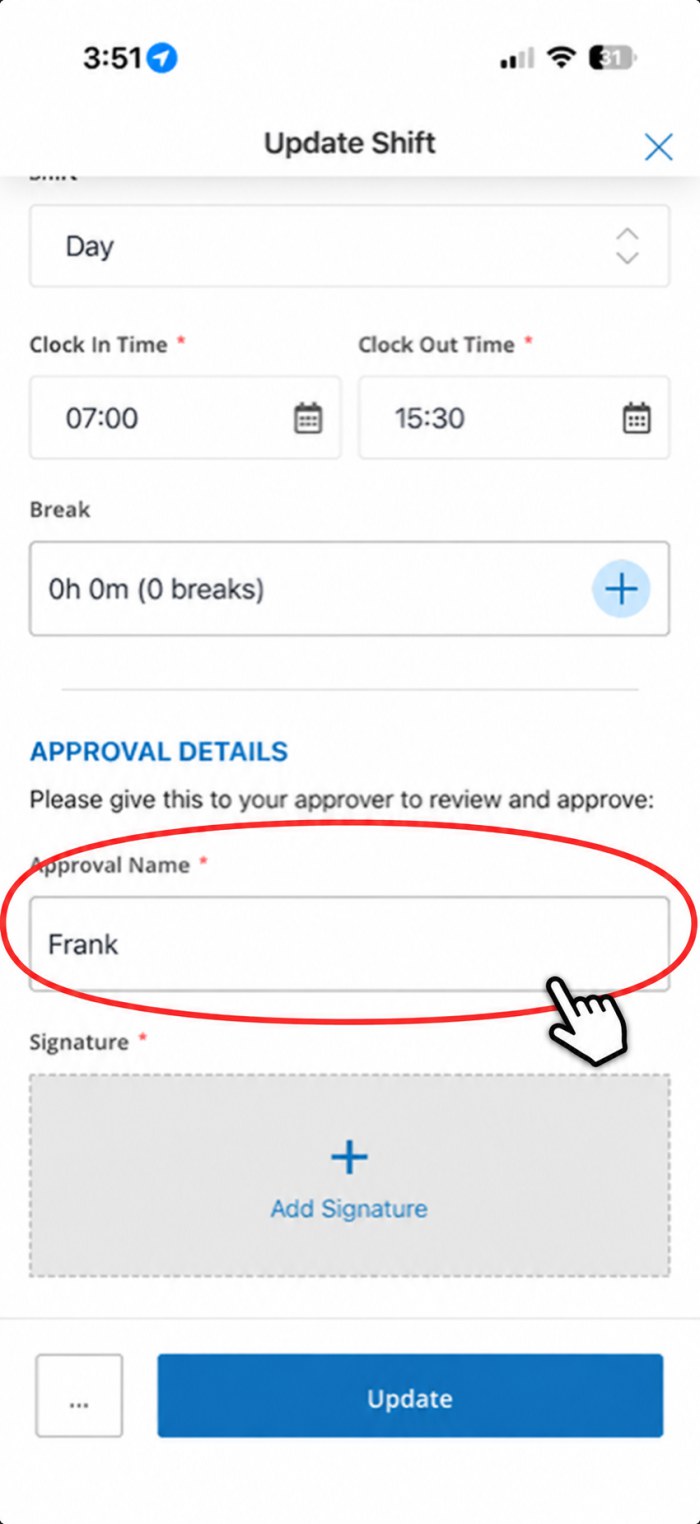
Scroll down to Approval Details.
Type your supervisor’s name in the Approval Name box.
Now give your phone to your supervisor.
Your supervisor checks your hours
Signed on site, before you leave
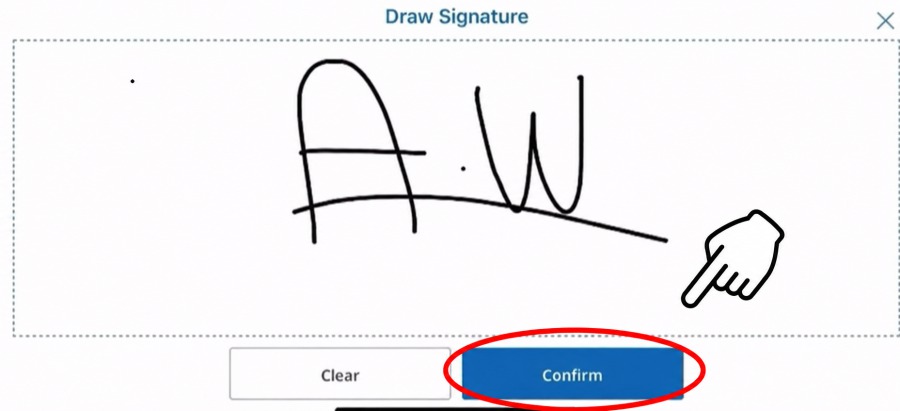
Your supervisor taps + Add Signature and signs with their finger.
If the signature is wrong, tap Clear and sign again.
Then tap Save. If you are changing a shift you already added, the button says Update.
When every day is entered and signed, look for the round blue + button at the bottom right of the screen.
Tap it. A small menu will open.
The blue + button, bottom right
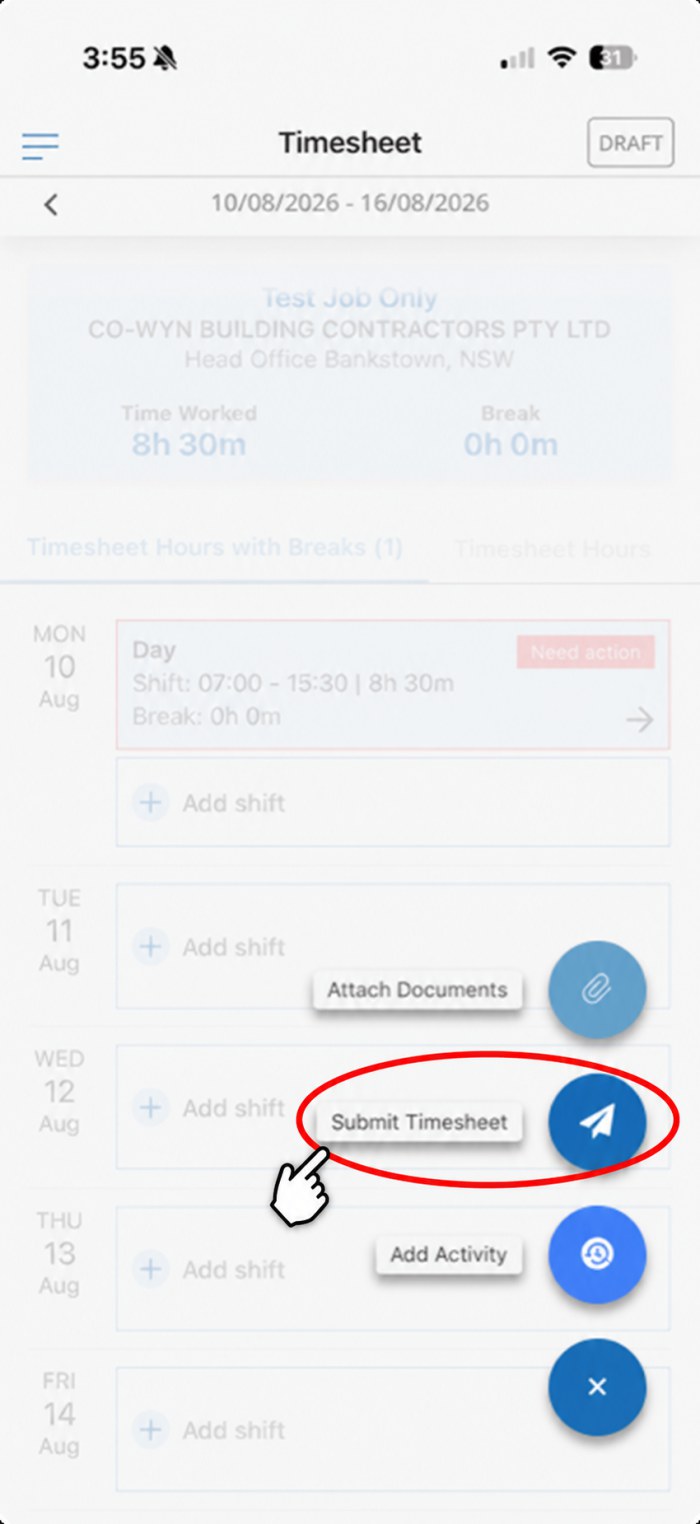
Tap Submit Timesheet
Three options appear. Choose Submit Timesheet.
Do not choose Attach Documents or Add Activity.
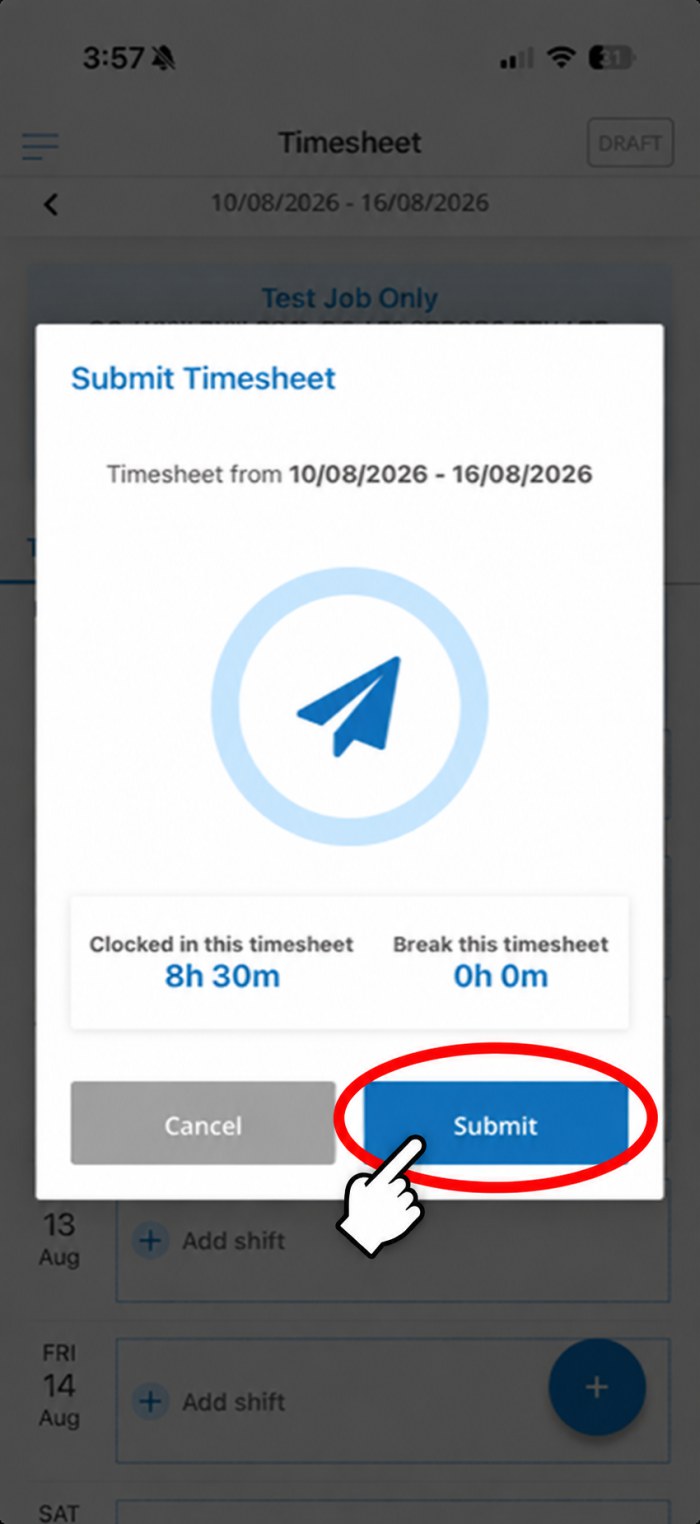
The app shows your total hours and breaks for the week.
Check they are correct, then tap Submit.
Last check before you send
Full walkthrough (1 min 18)
Make sure you have chosen the correct option.
If you are not sure which option is yours, speak to your Labour Connect consultant.
If you have any problem, contact your Labour Connect consultant, or email us and we will help you.
or call (02) 7205 0105

 TimeTemp

 TimeTemp