You enter and submit your hours. The client then approves your timesheet online. You do not need a signature on site.
Step 1
Download the TimeTemp app
Make sure the TimeTemp app is on your phone.
TimeTemp
Search for TimeTemp in the App Store (iPhone) or Google Play (Android) and install it. It is free.
Step 2
Wait for Your TimeTemp Login
You do not need to log in right now. For now, keep scrolling through this page to learn how to use TimeTemp.
Labour Connect will set up your account. When it is ready, you will receive an email from TimeTemp with your login details.
Step 3: Every shift
Enter your hours and save
Do this on your phone for every day you work.
3.1
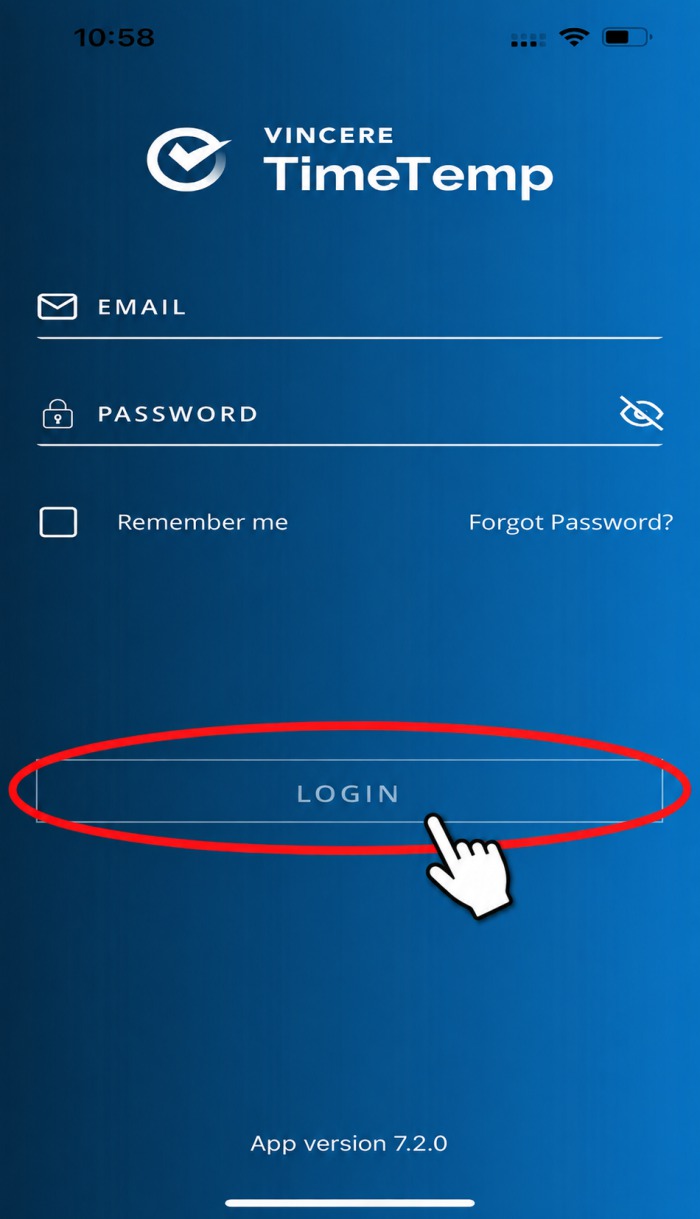
Open the TimeTemp app and log in
Open the app on your phone.
Your username is your email address.
The first time, the app asks you to make your own password.
Log in with the details we email you
Make sure this is the right job
3.2
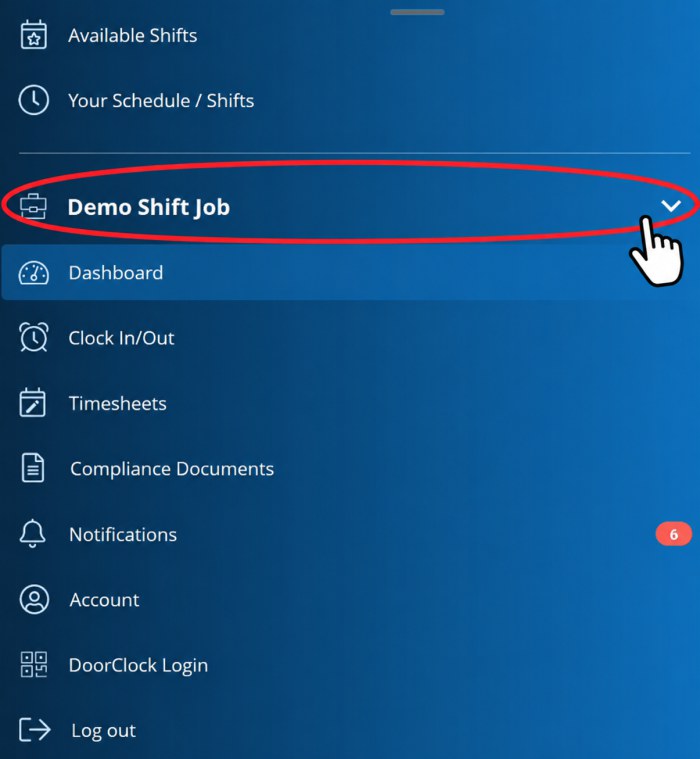
Check the job name at the top
The job you are working on is shown at the top of the screen.
If you work for more than one client, tap the swap arrows to change to the correct job first.
3.3
Tap TIMESHEET
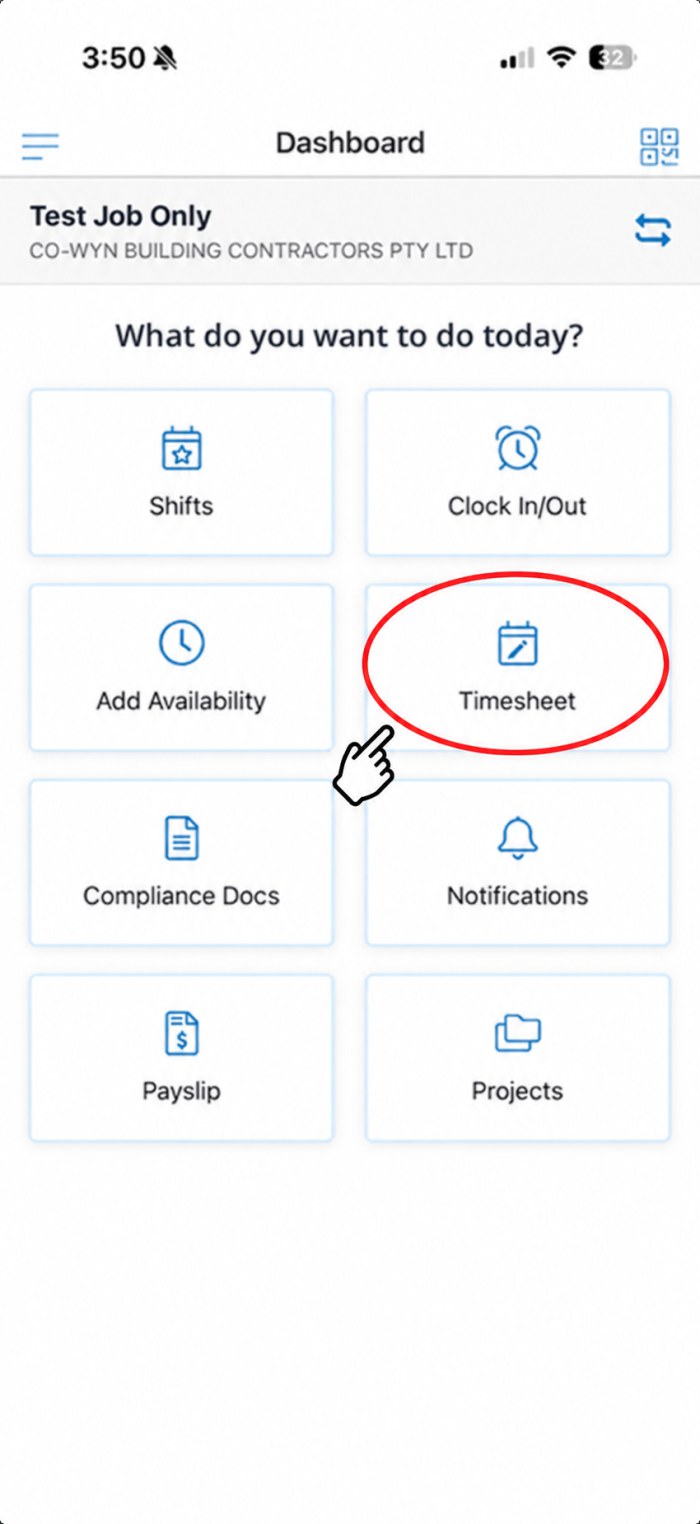
On the Dashboard, tap the button that says Timesheet.
Do NOT tap Clock In/Out. Labour Connect does not use it.
In older versions of the app this button says Edit Timesheet.
Tap Timesheet — not Clock In/Out
Pick the correct week
3.4
Choose the week you worked
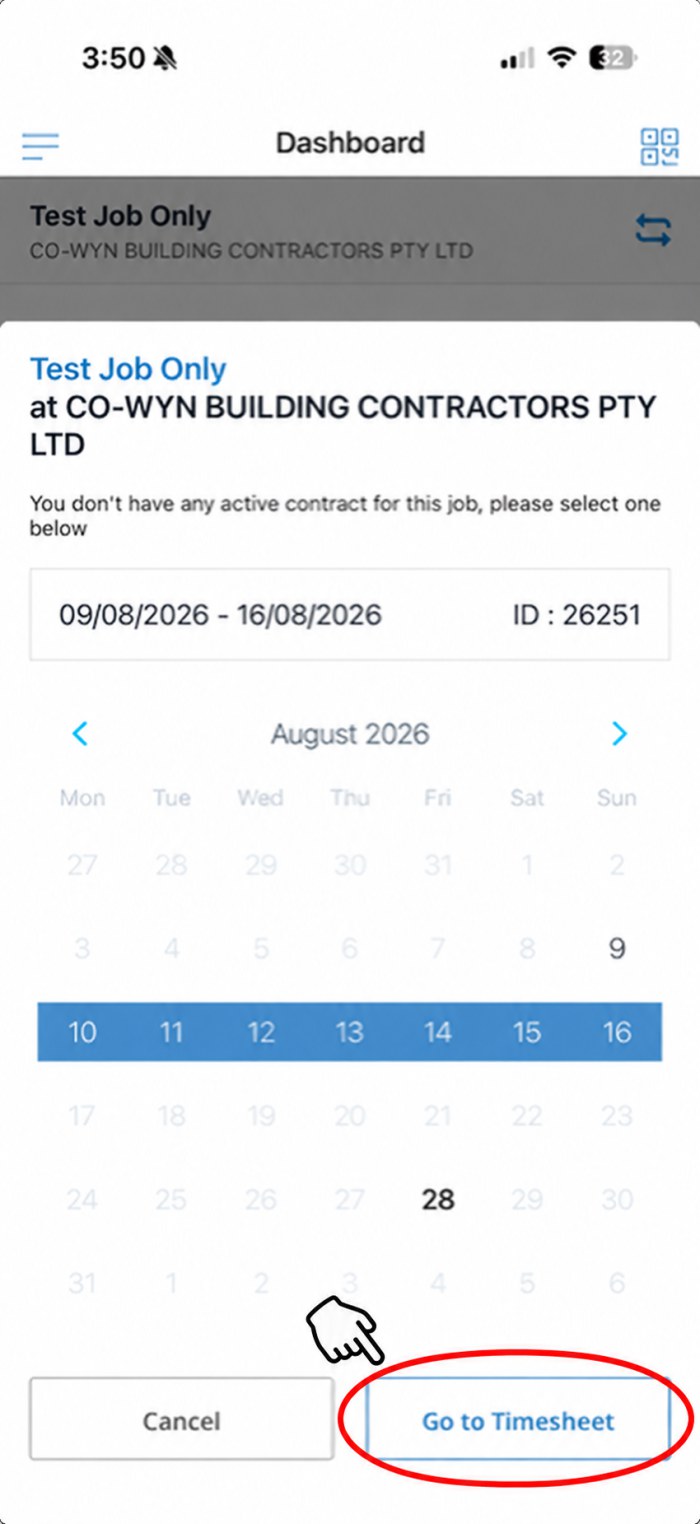
If the app asks you to select a contract, choose the correct week from the calendar.
Then tap Go to Timesheet.
3.5
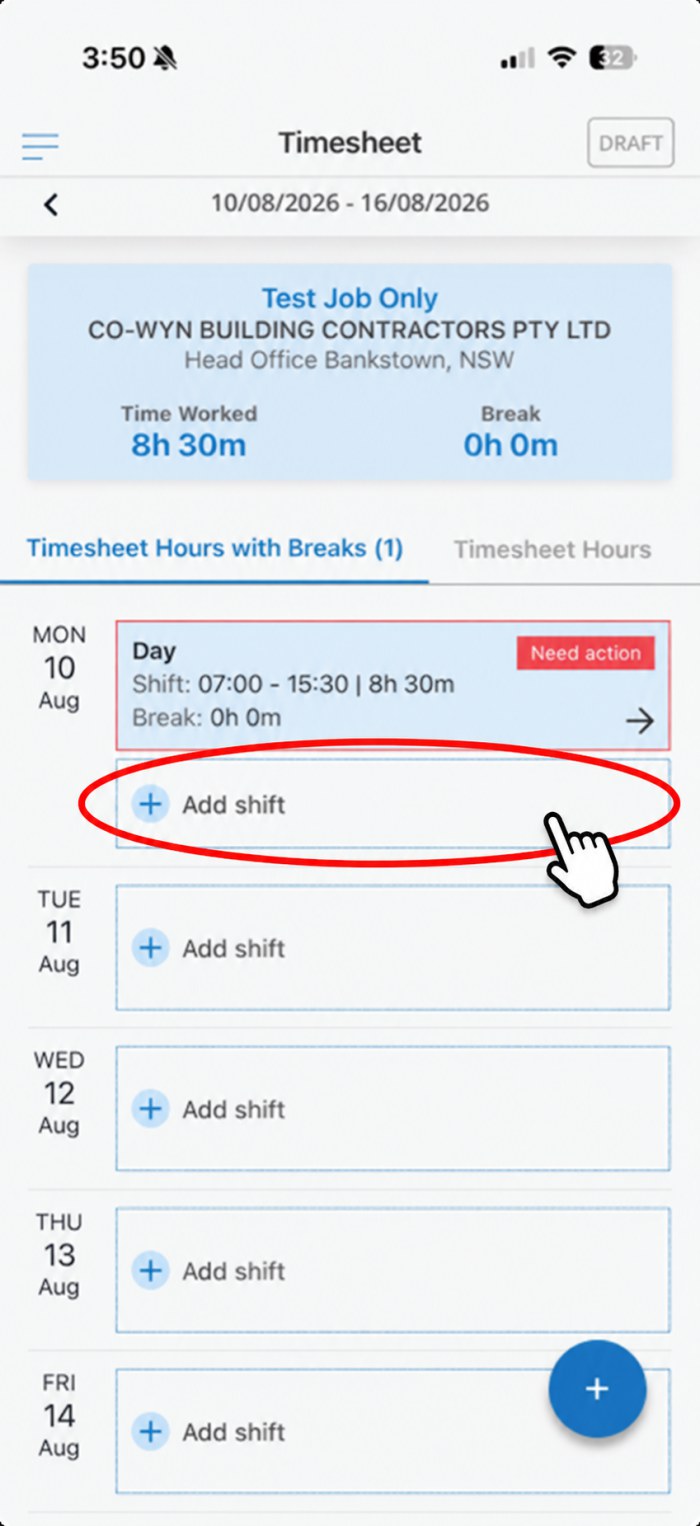
Tap ADD SHIFT on the day you worked
You will see every day of the week.
Tap Add shift on the day you worked.
One shift for each day you work
No signature needed — just save
3.6
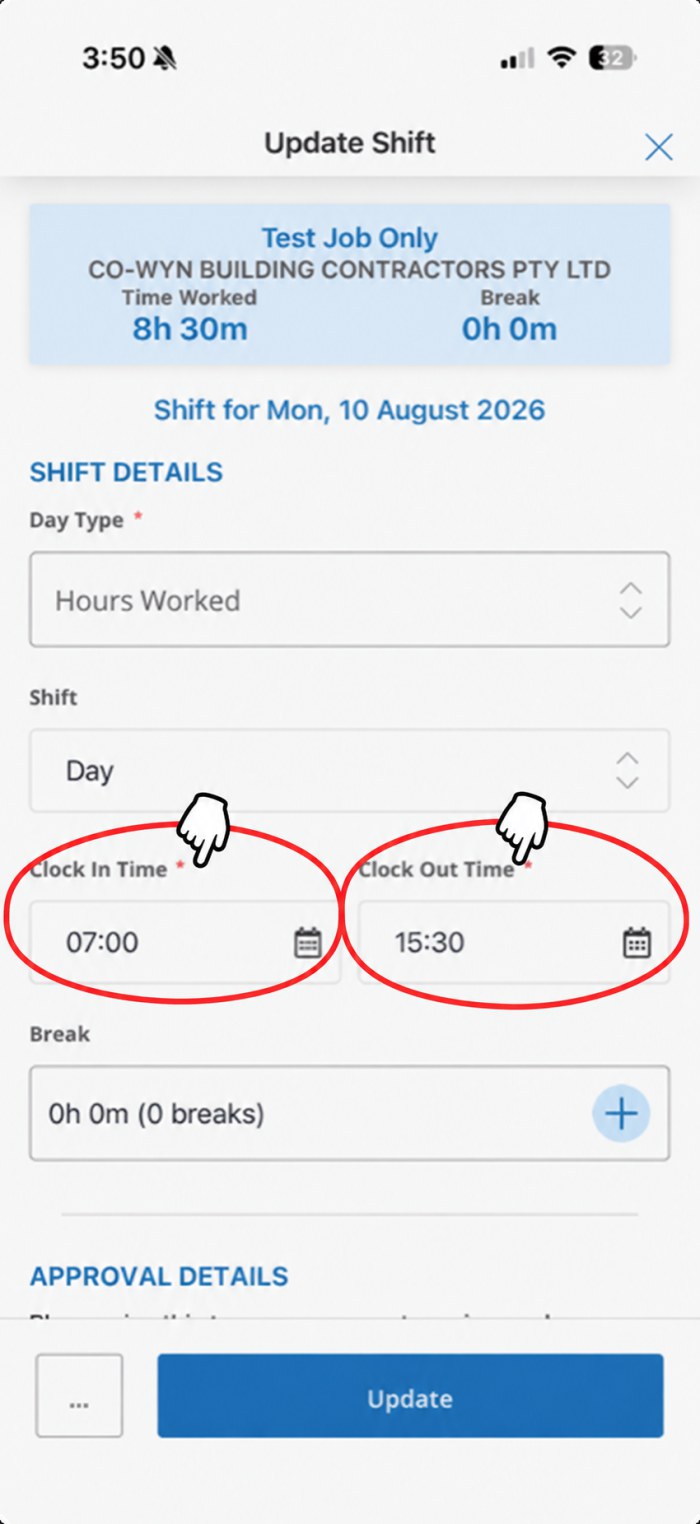
Type your times, then tap SAVE
Day Type — choose Hours Worked.
Clock In Time and Clock Out Time — your real start and finish times.
Break — tap + and add every unpaid break.
Tap Save. You do not need a signature.
Step 4: End of week only
Last step — submit your timesheet
Do this ONCE at the end of the week. Not every day.
4.1
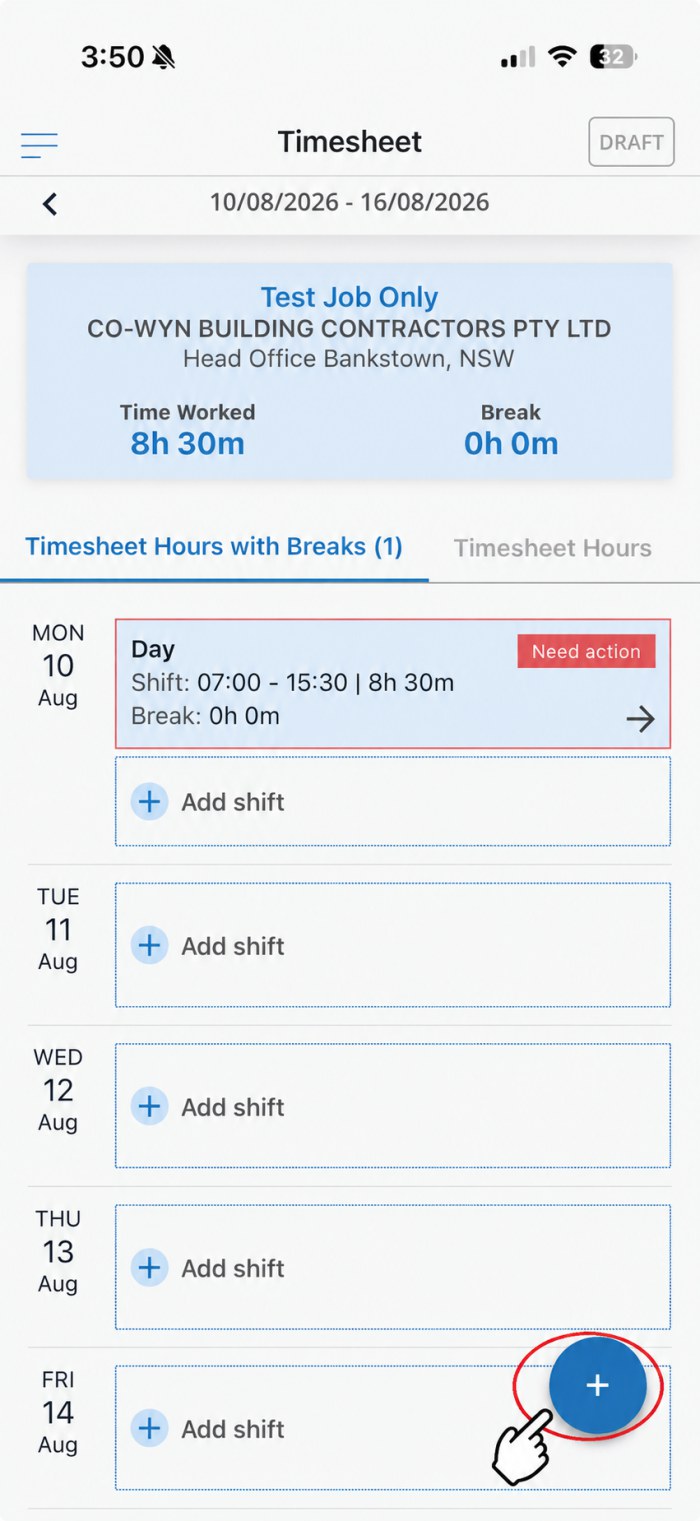
Tap the blue + button
When every day you worked is entered, look for the round blue + button at the bottom right of the screen.
Tap it. A small menu will open.
The blue + button, bottom right
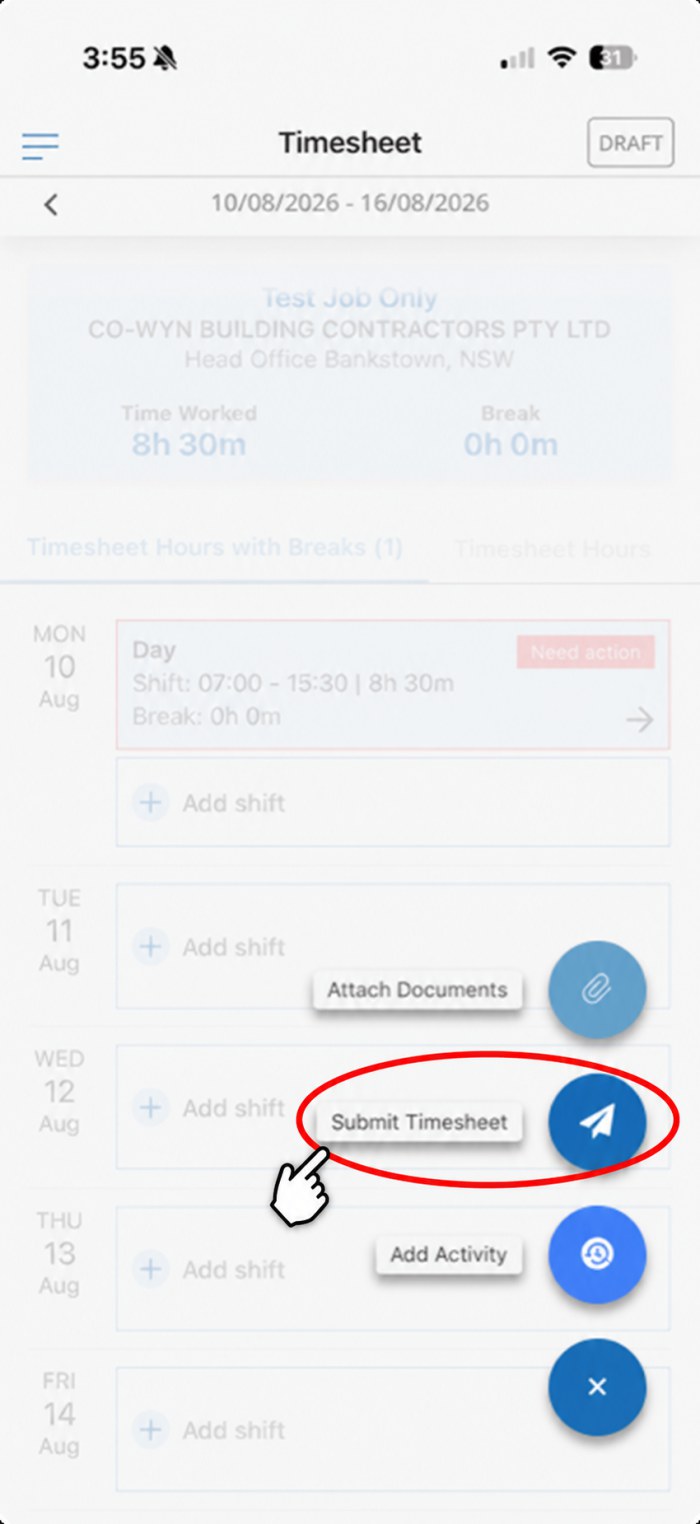
Tap Submit Timesheet
4.2
Choose SUBMIT TIMESHEET
Three options appear. Choose Submit Timesheet.
Only use Attach Documents if your consultant has asked you to.
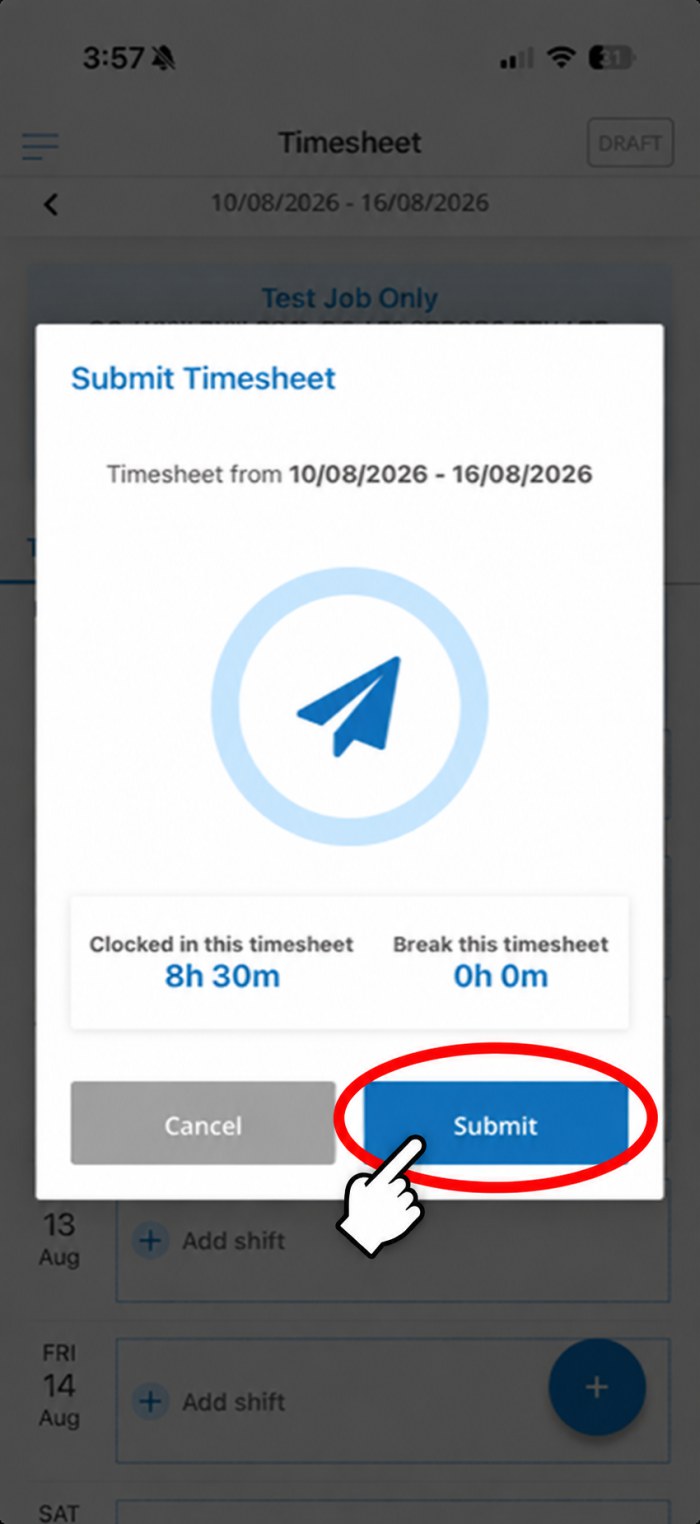
4.3
Check your hours and tap SUBMIT
The app shows your total hours and breaks for the week.
Check they are correct, then tap Submit.
Last check before you send
The client approves it online
After you submit, the client checks your timesheet and approves it in their own system. If they reject it, you must fix it and submit again — so submit early.
WATCH THIS VIDEO: HOW TO ENTER AND SUBMIT YOUR HOURS
How to enter your hours
How to submit
Are you on the right page?
Make sure you have chosen the correct option.
If you are not sure which option is yours, speak to your Labour Connect consultant.
Need Help?
If you have any problem, contact your Labour Connect consultant, or email us and we will help you.

 TimeTemp